A Stream Deck as a Claude Code Dashboard
Parallel Claude Code sessions mapped onto Stream Deck keys so the one that needs me lights up: AgentDeck on macOS and yolodeck on Windows, end to end.
On this page
I usually have four or five Claude Code sessions running at once, each in its own VS Code window and repository. The bottleneck stopped being typing a while ago. It is now attention: knowing which session is working, which one is blocked on a permission prompt, and which one finished ten minutes ago while I was looking somewhere else. This post is about turning an Elgato Stream Deck into a physical status board for those sessions, with the full setup for macOS (AgentDeck) and Windows (yolodeck).
What a Stream Deck is#
An Elgato Stream Deck is a small programmable keypad where every key is a tiny LCD. Each key can show a label, an icon, a colour, or a status, and can trigger an action when pressed. People mostly use them for launching applications, controlling audio and video, running scripts, switching windows, and firing shortcuts.
The important part is that the keys are not just buttons. They are also displays. That makes a Stream Deck useful as a small physical dashboard, not only a macro pad.
Why pair one with Claude Code#
A typical afternoon looks like this:
VS Code
├── project-a
│   └── Claude Code session
├── project-b
│   └── Claude Code session
├── project-c
│   └── Claude Code session
└── project-d
    └── Claude Code session
Some sessions are actively working. Some are waiting for input. Some are blocked on a permission prompt. Some are finished and waiting for me to notice. All of that state normally lives inside terminal tabs and editor windows, and as the number of concurrent sessions grows I spend more time clicking between windows just to answer one question: which Claude needs me right now?
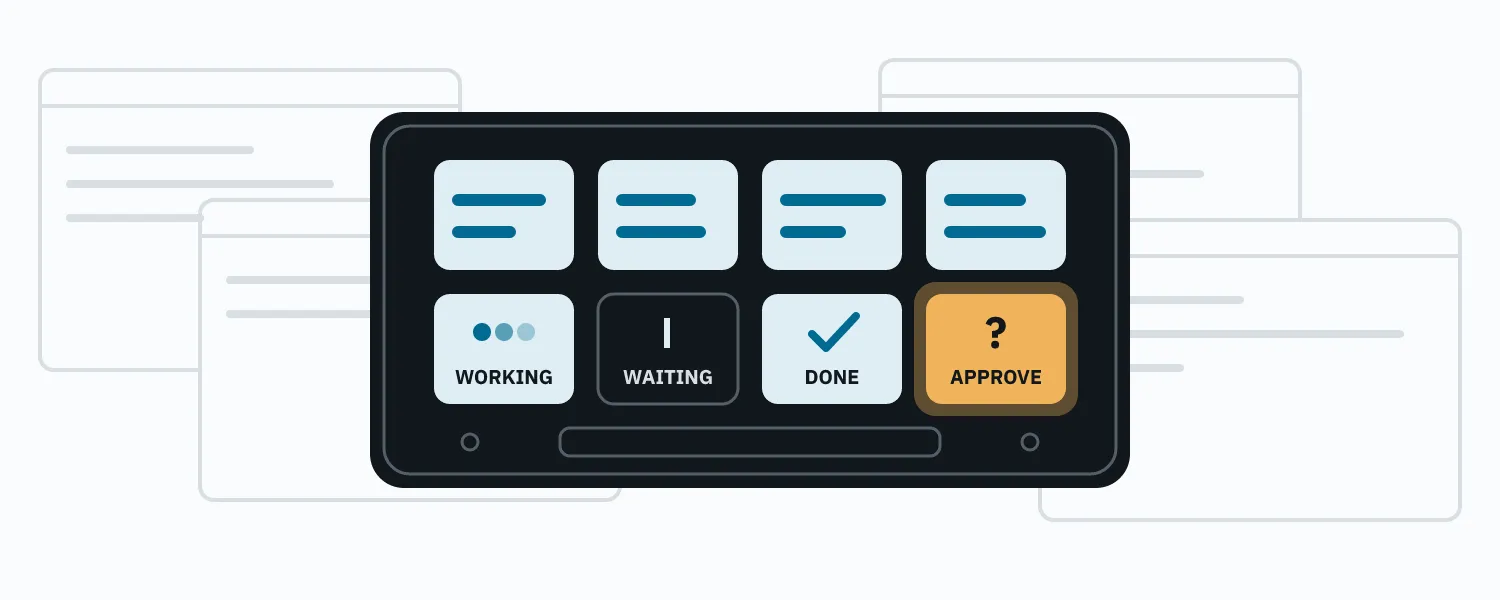
That is the problem the Stream Deck solves. Instead of checking every window, I map sessions onto physical keys:
[ narrative ] [ website ] [ playground ] [ science ]
[ WORKING   ] [ WAITING ] [ DONE       ] [ APPROVAL ]
The key itself tells me the state of the session. Depending on the integration, a key can show the project or repository name, whether the session is working, idle, waiting for input, waiting for permission, completed, or disconnected, and Claude usage limits. The keys are also interactive: pressing one selects that session, brings its VS Code window to the foreground, approves or denies a pending tool call, or jumps to whichever session currently needs attention.
The result is a physical status board for an agentic development environment.
Why this matters for agentic workflows#
The old loop was write code, wait, read the response, write more code. The new loop is closer to this:
start agent A
start agent B
review agent C
answer agent D
approve agent A
check agent B
At that point the constraint is not how fast I can type. It is attention management. I need to know what is running, what is blocked, what needs a decision, what has finished, and where I should look next. A Stream Deck makes that information visible without continuously polling terminals and editor windows. For me it is less about shortcuts and more about observability for parallel Claude sessions.
What I am using#
I use a Stream Deck Neo, which has eight physical LCD keys in a four-by-two grid. The software stack differs by operating system:
macOS
Claude Code -> AgentDeck -> Stream Deck

Windows
Claude Code -> yolodeck  -> Stream Deck
Both integrations use Claude Code lifecycle information to turn the Stream Deck into a live session monitor, but they are shaped differently. AgentDeck runs a daemon that the Stream Deck plugin connects to. yolodeck has no daemon at all: the Stream Deck application launches the plugin, and Claude Code hooks post events straight to it on localhost.
The goal is the same on both platforms: make the state of every Claude Code session visible at a glance, and make it obvious when one of them needs me.
macOS: AgentDeck#
Once configured, the AgentDeck daemon starts when you log in, Claude Code sessions are observed automatically through hooks, and AgentDeck Session Slot actions on the Neo show those sessions. Nothing needs to be launched by hand day to day.
Prerequisites#
- macOS 15 Sequoia or newer for the Node-based AgentDeck bridge
- Elgato Stream Deck app 6.9 or newer, and the hardware (a Neo here)
- Node.js 22 or newer
- Claude Code installed and working
node --version      # brew install node if missing or too old
claude --version    # npm install -g @anthropic-ai/claude-code if missing
Install AgentDeck#
AgentDeck has a one-command installer:
npx @agentdeck/setup
agentdeck --version
agentdeck --help
You should see commands including daemon, status, stop, devices, and dashboard.
If agentdeck is not found
Open a new Terminal window and try again. If your user-local command-line tools live under ~/.local/bin, make sure that directory is permanently on your zsh PATH:
grep '.local/bin' ~/.zshrc || echo 'export PATH="$HOME/.local/bin:$PATH"' >> ~/.zshrc
source ~/.zshrc
which agentdeck
The grep guard stops you from appending the same line every time you troubleshoot.
Install the Stream Deck plugin#
In the Elgato Stream Deck application, open the Marketplace and install AgentDeck. Use the released Marketplace version rather than linking a development checkout. After installation, AgentDeck actions appear in the actions panel. The one that matters is Session Slot: drag it onto every Neo key you want AgentDeck to control.
Install the daemon as a background service#
The Stream Deck plugin is a client of AgentDeck’s monitoring daemon, so the daemon must be running for session state to appear. Install it as a macOS LaunchAgent so it starts at login, then start it now and check it:
agentdeck daemon install
agentdeck daemon start
agentdeck daemon status
A working daemon reports something like status: ok, mode: daemon, port: 9120, and a streamDeck section listing your hardware. For a Neo, expect roughly:
{
  "name": "Stream Deck Neo",
  "family": "streamdeckneo",
  "columns": 4,
  "rows": 2
}
That confirms AgentDeck sees the eight physical keys. The other daemon commands are restart, stop, and uninstall (which removes the automatic startup).
Restart Stream Deck and verify#
After installing the plugin and starting the daemon, fully restart the Stream Deck application:
osascript -e 'quit app "Stream Deck"'
open -a "Stream Deck"
Then start Claude Code normally. You do not launch Claude through AgentDeck; its normal mode observes Claude Code through the installed lifecycle hooks.
claude
agentdeck status
Start one or more sessions and confirm they appear on the Session Slot keys. A straightforward Neo configuration is Session Slot on all eight keys; AgentDeck maps the slots onto the device grid and decides what each one displays from its current state.
The architectural split is worth remembering when something looks wrong: the daemon owns session state and usage data, and the plugin decides how physical keys render it.
Troubleshooting on macOS
Command not found. Check which agentdeck and echo $PATH; fix the PATH as described above.
Daemon not running. agentdeck daemon status, then start or restart.
Daemon does not come back after login. Reinstall the LaunchAgent:
agentdeck daemon uninstall
agentdeck daemon install
agentdeck daemon start
Plugin shows no sessions. Check the daemon first, restart Stream Deck with the two osascript / open lines above, then start a fresh claude session.
AgentDeck does not see the Neo. In agentdeck daemon status, look under modules for streamDeck with available: true and the Neo listed under devices. Also confirm the Elgato application itself sees the device.
Do not guess CLI commands. agentdeck --help and agentdeck daemon --help list what actually exists.
Updating AgentDeck
AgentDeck is installed through its setup package rather than Homebrew in this configuration, so rerun the installer and restart the daemon:
npx @agentdeck/setup
agentdeck daemon restart
If the Stream Deck plugin was updated separately through the Marketplace, restart the Stream Deck application too.
The finished macOS configuration:
Mac
├── Claude Code
│   └── run normally with: claude
├── AgentDeck CLI
│   └── installed with: npx @agentdeck/setup
├── AgentDeck daemon
│   ├── port 9120
│   ├── installed as macOS LaunchAgent
│   └── starts automatically at login
├── Elgato Stream Deck app
│   └── AgentDeck Marketplace plugin
└── Stream Deck Neo
    ├── detected as streamdeckneo
    ├── 4 columns x 2 rows
    └── AgentDeck Session Slot actions
Windows: yolodeck#
yolodeck takes a different shape. There is no daemon and no Windows service. The Stream Deck application launches and supervises the yolodeck plugin process, and Claude Code hooks send lifecycle events directly to the plugin on 127.0.0.1:9200. Once configured, sessions register themselves, each running session appears on a Session key, keys change state as Claude works, waits, or asks for permission, and permission requests can be approved or denied from the deck. The plugin starts whenever Stream Deck starts.
Prerequisites#
- Windows 10 or newer
- Elgato Stream Deck hardware and application (
winget install -e --id Elgato.StreamDeckif needed); make sure the application recognises the device before continuing - Claude Code installed and working
- Git (
winget install -e --id Git.Gitif needed) - Node.js 24 or newer, via nvm-windows or the current installer
- The Elgato Stream Deck CLI (installed below)
For the current Elgato CLI toolchain, Stream Deck 7.1+ and Node 24+ are the safest baseline. After installing or switching Node versions, open a new PowerShell window before checking:
node --version
npm --version
git --version
claude --version
For yolodeck’s Usage key, Claude Code 2.1.80 or newer is recommended, because earlier versions do not expose rate-limit data through statusLine.
Install the Elgato Stream Deck CLI#
yolodeck is installed as a locally linked plugin, so you need Elgato’s developer CLI:
npm install -g @elgato/cli@latest
streamdeck -v
If PowerShell refuses to run the CLI
Node command-line tools install PowerShell scripts, and the default execution policy may block them:
Set-ExecutionPolicy -ExecutionPolicy RemoteSigned -Scope CurrentUserOpen a new PowerShell window and retry streamdeck -v.
Get yolodeck#
yolodeck is currently a source install rather than a Marketplace install. Clone it somewhere you are comfortable keeping permanently, because Stream Deck links directly to the plugin directory rather than copying a packaged release. Do not delete or casually move the checkout after linking it.
cd F:\github
git clone https://github.com/cruftbox/yolodeck.git
cd yolodeck
npm install
Set the security token#
Do this before installing the Claude hooks. yolodeck exposes a local endpoint that can approve Claude Code tool calls. It binds only to 127.0.0.1:9200, but a browser tab can still attempt requests to localhost, so yolodeck supports a shared bearer token in the YOLODECK_TOKEN environment variable. Generate one, persist it as a user environment variable, and make it available to the current shell:
$token = node -e "console.log(require('crypto').randomBytes(32).toString('hex'))"
setx YOLODECK_TOKEN $token
$env:YOLODECK_TOKEN = $token
[Environment]::GetEnvironmentVariable("YOLODECK_TOKEN", "User")Use the two-step form above rather than Unix-style command substitution inside setx; nested quoting inside a PowerShell $(...) around a node -e string is exactly the kind of thing that silently produces the wrong token.
Build, enable developer mode, and link#
From the yolodeck repository, build the plugin. It lives under com.cruftbox.yolodeck.sdPlugin. Because it is linked from a checkout rather than installed from the Marketplace, enable Stream Deck developer mode once, then link:
npm run build
streamdeck dev       # prints: Developer mode enabled
npm run link
streamdeck list
A successful link shows an entry like:
com.cruftbox.yolodeck → F:\github\yolodeck\com.cruftbox.yolodeck.sdPlugin\streamdeck list --all shows every installed and linked plugin. If linking looks suspicious, validate the plugin directly:
streamdeck validate .\com.cruftbox.yolodeck.sdPluginInstall the Claude Code hooks#
npm run hooks:installThis modifies the user-level Claude Code configuration at %USERPROFILE%\.claude\settings.json. The installed hooks send Claude lifecycle events to yolodeck’s listener at http://127.0.0.1:9200, passing the token as an Authorization: Bearer header taken from the environment variable rather than storing the secret in the settings file.
If the install prints WARNING: YOLODECK_TOKEN is not set, do not ignore it. Set the token as described above, then restart Stream Deck and any existing Claude Code or VS Code processes.
Restart Stream Deck completely#
After linking the plugin and setting the token, fully quit the Stream Deck application: right-click its icon in the system tray and choose Quit Stream Deck, then launch it again from the Start menu. Closing the configuration window is not enough; the background process keeps running.
If taskkill says Access is denied
An error like The process "StreamDeck.exe" could not be terminated. Reason: Access is denied. usually means the running Stream Deck process has different elevation than your shell. Do not fight it from a non-elevated prompt. Quit Stream Deck from its tray icon, or end it from a Task Manager opened as Administrator, then relaunch Stream Deck normally, not with “Run as administrator”. Keeping Stream Deck at normal user privilege avoids mismatches with the development CLI and the plugin.
Configure the keys#
Open the Stream Deck application and look for the yolodeck category in the actions panel. It provides Session, Status, Model, Mode, Approve, Always Allow, Deny, Focus, and Usage. If streamdeck list shows the plugin but no yolodeck category appears, rerun streamdeck dev, check streamdeck list --all, validate the plugin, and fully quit and relaunch Stream Deck.
Drag multiple Session actions onto the keys you want for Claude sessions. Sessions are assigned dynamically: you do not configure a repository path per key. Claude sessions announce themselves through the hooks and yolodeck fills the available Session keys. A useful eight-key layout with approval controls:
[ Session 1 ] [ Session 2 ] [ Session 3 ] [ Session 4 ]
[ Status    ] [ Approve   ] [ Deny      ] [ Focus     ]
If you care more about seeing many concurrent sessions than about approving from the deck, use Session on all eight keys. Add a Usage key if you want rate-limit information.
What each action does:
- Session: one key per Claude Code session. The label comes from the session’s custom title when available, otherwise its working directory. Pressing it selects that session as the active target and brings its window forward.
- Status: current state and active work for the selected session.
- Model: the active Claude model for the selected session.
- Mode: the Claude Code permission mode. Informational only; yolodeck does not change it.
- Approve: approves the pending permission request. Dim when there is nothing to approve.
- Always Allow: approves the pending request and applies Claude’s suggested permission rule for the rest of that session.
- Deny: denies the pending request.
- Focus: brings the selected session’s window forward.
- Usage: rate-limit information from Claude Code’s
statusLinedata, mainly useful for terminal-based sessions.
Session states#
yolodeck represents each session with one of five states. Idle means Claude is connected and waiting for input. Processing means Claude is working. Awaiting permission means Claude wants a tool permission decision, which Approve or Deny can resolve from the deck. Awaiting elicitation means Claude is asking the user a question. Disconnected means no active Claude process is associated with the session. The keys use colour and animation to make these visible at a glance.
Start Claude normally and verify#
There is no yolodeck launcher. Start Claude Code from a terminal or a VS Code integrated terminal in each project, exactly as before:
cd F:\github\some-project
claude
Sessions register with yolodeck after Claude emits its first hook event. Registration is lazy: the plugin does not scan the machine for running Claude processes. That also means a session that was already running before Stream Deck started becomes visible the next time it emits an event.
To confirm the listener is up and see which process owns it:
Get-NetTCPConnection -LocalPort 9200 -State Listen |
    Select-Object LocalAddress, LocalPort, OwningProcess
Get-Process -Id <the OwningProcess value>
The full sanity check for the stack:
node --version; npm --version; claude --version
streamdeck -v; streamdeck list
[Environment]::GetEnvironmentVariable("YOLODECK_TOKEN", "User")
Get-NetTCPConnection -LocalPort 9200 -State Listen
claude
Expected result: the tools are available, streamdeck list contains com.cruftbox.yolodeck, the token is set, something is listening on port 9200, yolodeck actions appear in the Stream Deck application, sessions appear on Session keys, the keys change state while Claude works, and permission requests can be approved or denied from the deck.
Troubleshooting on Windows
Linked but not visible in Stream Deck. streamdeck list --all should show com.cruftbox.yolodeck. Run streamdeck dev, validate the plugin, then fully quit and relaunch Stream Deck.
yolodeck appears but no sessions show up. Check the listener on port 9200 first. Then verify the hooks landed:
Get-Content "$env:USERPROFILE\.claude\settings.json"Look for hook URLs containing 127.0.0.1:9200, then start a new claude session. If the token was added after VS Code or Claude was already running, restart those processes.
Token warning. Check the persisted value with [Environment]::GetEnvironmentVariable("YOLODECK_TOKEN", "User") and the current window with $env:YOLODECK_TOKEN. Remember that setx only affects processes started afterwards: restart Stream Deck, VS Code, and Claude terminals.
CLI blocked by PowerShell. Set the execution policy as described above and open a fresh window.
Do not guess command syntax. streamdeck --help lists what exists.
Reloading and updating yolodeck
The yolodeck README notes that streamdeck restart and streamdeck stop may report success without actually replacing the running plugin process. For a reliable reload, kill whatever owns port 9200 and let the Stream Deck application respawn it with the current build:
Get-NetTCPConnection -LocalPort 9200 -State Listen |
    ForEach-Object { Stop-Process -Id $_.OwningProcess -Force }
That is the step to run after every npm run build. Updating is the checkout updated in place, then the same reload:
git pull
npm install
npm run build
If the plugin manifest or link changed, rerun npm run link and check streamdeck list. If the hooks changed upstream, rerun npm run hooks:install.
Uninstalling yolodeck
From the yolodeck repository:
npm run hooks:uninstall
npm run unlink
[Environment]::SetEnvironmentVariable("YOLODECK_TOKEN", $null, "User")
hooks:uninstall removes yolodeck’s hook entries from Claude Code’s settings and leaves unrelated configuration alone. Open new processes afterwards if you want the removed variable gone from their environment.
The finished Windows configuration:
Windows
├── Claude Code
│   ├── run normally with: claude
│   └── user hooks in: %USERPROFILE%\.claude\settings.json
├── YOLODECK_TOKEN
│   └── Windows user environment variable
├── yolodeck source checkout
│   ├── npm dependencies
│   ├── locally built plugin
│   └── com.cruftbox.yolodeck.sdPlugin
├── yolodeck plugin
│   ├── launched by the Stream Deck app
│   ├── listener: 127.0.0.1:9200
│   └── no separate daemon/service
├── Elgato Stream Deck app
│   ├── developer mode enabled
│   └── yolodeck linked with Elgato CLI
└── Stream Deck
    ├── Session keys
    ├── Status / Model / Mode
    ├── Approve / Always Allow / Deny
    ├── Focus
    └── optional Usage
Day to day#
On both platforms there is nothing special to launch. I start Claude Code normally in each project, and the deck fills in. On the Mac, the LaunchAgent brings the AgentDeck daemon back after every reboot. On Windows, yolodeck runs as long as the Stream Deck application is running and receives events through the installed hooks. Either way, when a key turns the colour that means “waiting on you”, I know exactly where to look.