WorldLock · Part 2 of 3
Android development with Claude, no IDE, no cable
How WorldLock is built, deployed and debugged with three CLI commands, wireless adb and a coding agent that reads logcat and screenshots. No Android Studio.
On this page
WorldLock has never been opened in Android Studio. The entire development loop is three commands and an AI that runs them:
.\gradlew.bat assembleDebug     # compile
.\gradlew.bat installDebug      # deploy to the phone
.\adb.cmd logcat -s Earth       # watch the app's logs
That’s it. That’s the IDE.
The trivial part: Claude does Android fine#
The quiet realization of this project is that Android development is extremely automatable once you drop the IDE. Everything Android Studio does behind buttons is a CLI command underneath, and CLI commands are exactly what a coding agent is good at:
- Build errors are just text. Claude runs
gradlew assembleDebug, reads the Kotlin compiler output, fixes the code, runs it again. The compile-fix loop that eats an afternoon of clicking happens unattended. - Logcat is just text too. The app logs everything interesting (geospatial accuracy, anchor state, a periodic cross-check of the coordinate math against ARCore’s own anchors) under one tag. Claude greps it, spots
delta=0.4morheading accuracy insufficient, and reasons about what to change. Debugging a georegistration bug from a log line beats stepping through a debugger you can’t attach to a phone that’s outside. - Screenshots close the loop. Phone screenshots land in a temp folder; Claude reads the pixels, notices the tower is leaning or the label is mispositioned, and edits the shader. It even cropped and placed the README gallery itself.
- No toolchain install, even. The build borrows the JDK 17 and Android SDK already bundled inside a Unity install on this machine: two paths in
gradle.propertiesandlocal.properties. No JDK or SDK download; the only thing fetched is the Gradle distribution the wrapper pulls on first run.
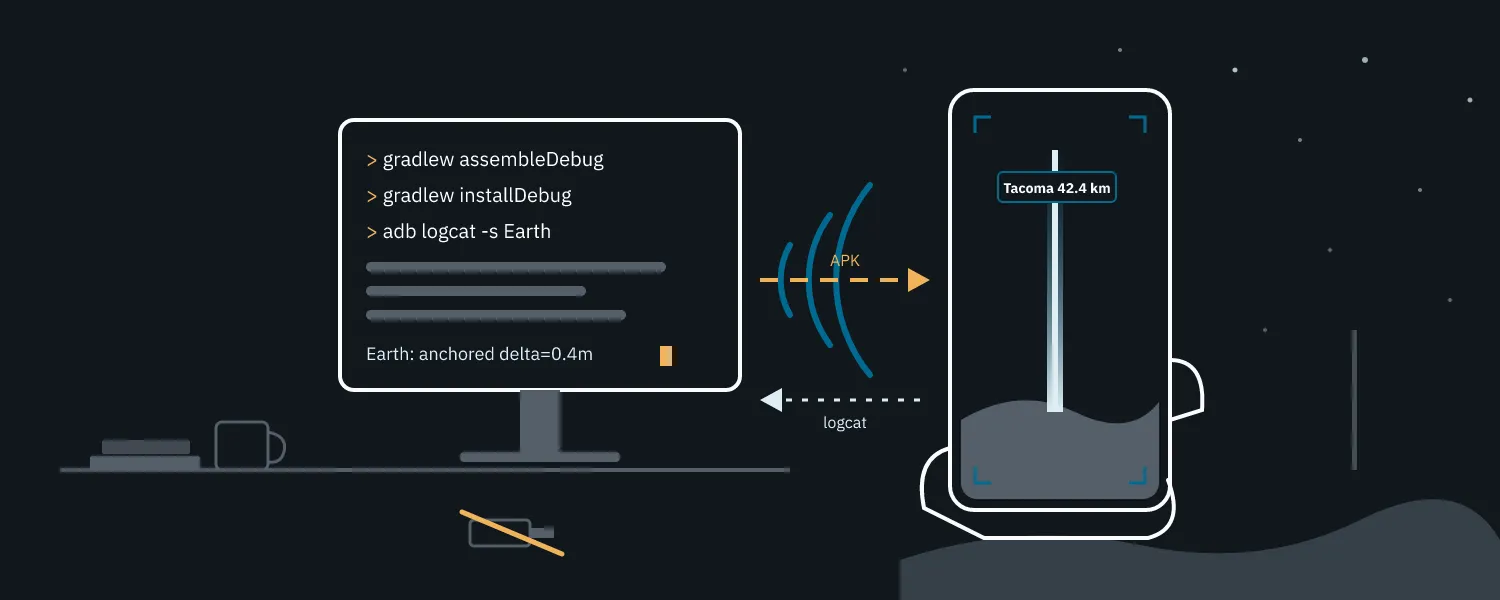
Put together, the loop is a text pipeline with a phone in the middle of it. The only arrows a human touches are the ones on the far right:
The human’s job shrinks to the three things an agent genuinely can’t do: physically pointing the phone at the sky, judging whether the ember particles look right, and running adb connect at startup for the wireless link (pair and connect are deliberately not pre-approved).
One guardrail worth copying: the phone is reachable only through a wrapper script (.\adb.cmd), plain adb isn’t on PATH, and the permission rules key off the wrapper’s name. Three tiers:
- Pre-approved: install, launch, stop and uninstall of this one package, plus device listing and logcat.
- Ask a human: anything unlisted, such as shell access, pulling files, or other packages.
- Never, even with a human: reboot, root, sideload, push,
shell rm, disabling packages, changing device settings, and readinglocal.properties, the file holding the ARCore API key.
The agent can iterate freely on the app without ever holding a blank check to the device.
The part that makes it work: wireless debugging#
When developing an AR app, you have to walk around. Geospatial localization wants you outside, pointing the camera at buildings. A phone tethered to a desktop by a USB cable is a phone that can’t do its job.
Android’s wireless debugging (Android 11+) fixes this and takes about ninety seconds to set up:
- On the phone: Developer options → Wireless debugging → on, then Pair device with pairing code.
- On the PC:
adb pair <phone-ip>:<pairing-port>and type the six-digit code. Once, ever, per PC. - Thereafter:
adb connect <phone-ip>:<port>and the phone shows up exactly like a USB device.
From that point the loop is genuinely wireless: Claude builds and runs installDebug, the APK flies over wifi, you pick the phone up off the desk, walk to the window or out the door, and logcat streams back to the desk the whole time. Change a shader constant, installDebug again, the phone updates in your hand.
The pairing dance is the only fiddly part (the pairing port is different from the connect port, and both change when the phone reboots or drops off wifi; you re-run adb connect with the new port and move on). Minor tax. Pairing happens once; everything after it is a connect that occasionally has to be repeated:
In exchange, the test loop for an app whose whole premise is stand somewhere real and look at the real world actually matches how the app is used.
The takeaway#
The stack for this project is: a phone, wifi, gradle, adb, and an agent that reads logs and screenshots. No IDE, no emulator, no cable. For a certain shape of app (small, native, hardware-in-the-loop) this is not a compromise workflow. It’s just better.